
Silhouette Studio is a powerful design program used by hobby crafters, small business owners, and experienced makers alike. If you’re wondering how to save Silhouette Studio designs safely, understanding cloud storage limits is critical. Many users don’t realize that Silhouette’s cloud storage quota for user-created designs is limited—and how you save your files directly affects whether they count toward your storage limit. As Silhouette continues to evolve its platform and storage offerings, understanding how to backup Silhouette designs and optimize your workflow has never been more valuable.
Quick Answer
Silhouette Studio designs saved to your computer don’t count toward your cloud storage quota. Only designs synced to the Silhouette Library do. Free accounts get 1GB of cloud storage; Diamond subscribers and Club Silhouette members get 5GB. Design Store purchases don’t count toward your limit unless you re-import them manually.
Why Smart Storage Management Matters More Than Ever
Like many cloud-based creative platforms, Silhouette has evolved its storage infrastructure and policies over time. Recent storage adjustments and platform updates have reminded users of an important principle: the best workflow doesn’t depend on any single storage method.
Whether you’re managing quota limits, preparing for software updates, or simply want peace of mind, understanding how to balance local and cloud storage gives you full control over your creative work.
In This Guide:
- Where Silhouette Studio designs are stored (local vs. cloud)
- What counts toward your storage quota
- Storage limits by subscription plan (2026)
- How To Backup Silhouette Studio Designs: Building a Resilient Workflow
- Workflow tips to avoid storage stress
Whether you’re just getting started or already managing a growing design library, this guide will help you avoid lost work and storage surprises.
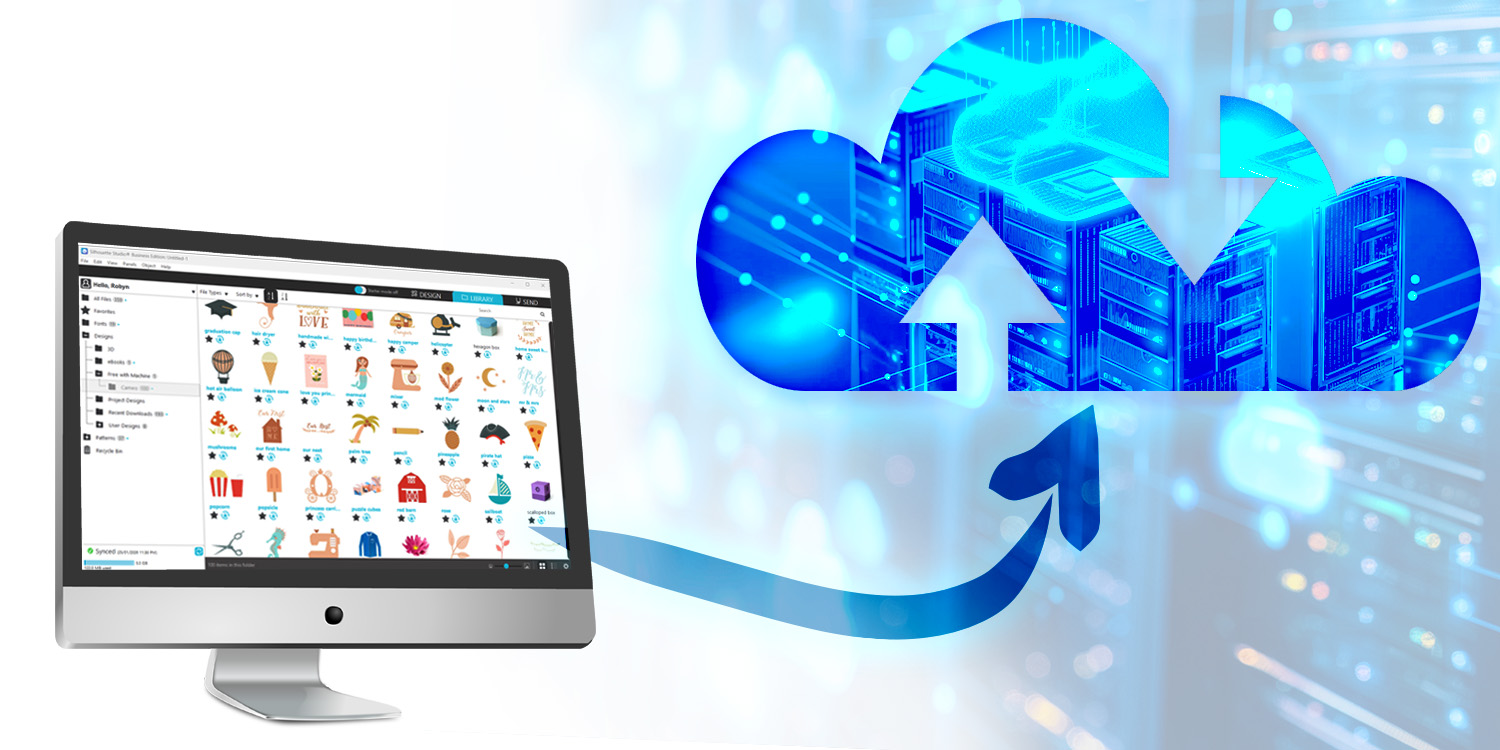
Where Are Silhouette Studio Designs Stored? Local vs Cloud Library Explained
Silhouette Studio allows designs to be stored in two different ways, and understanding the difference is key to managing your files effectively.
Local Storage (On Your Computer)
Local files are saved directly to your computer or an external drive. These designs:
- Are available even when you’re offline
- Do not count toward Silhouette’s cloud storage quota
- Give you full control over backups and organisation
Many experienced users prefer local storage as their primary workspace, importing files into the Library only when syncing across devices is needed.
Cloud Library Storage
Designs saved to the Silhouette Library and synced online are stored in Silhouette’s cloud system. This allows:
- Access from multiple computers
- Automatic syncing when signed in
However, cloud storage is limited, and user-created designs stored here count toward your quota.
Silhouette Cloud Storage Quota: What Counts (And What Doesn’t)
Not every file in your Library affects your storage limit, but many users are surprised by what does.
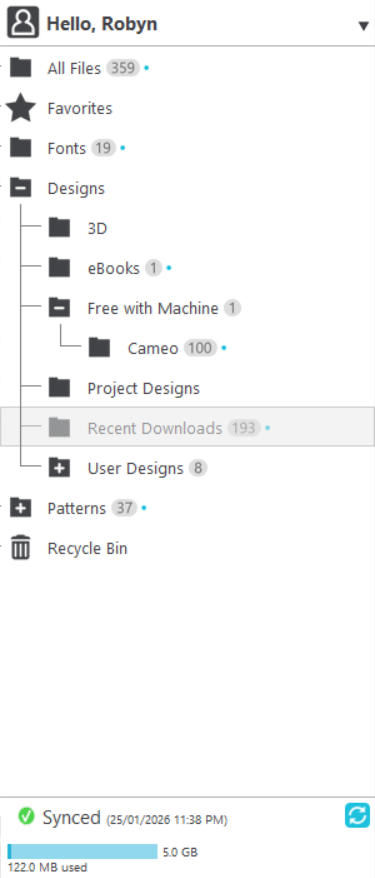
Designs That Do NOT Count Toward Your Quota
Designs purchased directly from the Silhouette Design Store – Browse the Silhouette Design Store
As long as these designs remain store-linked purchases in your Library, they do not use your cloud storage space. You can re-download them at any time.
Fonts Purchased from the Silhouette Design Store
Like Design Store purchases, fonts bought from the Silhouette Design Store do not count toward your cloud storage quota. Most fonts sync automatically to your Fonts folder in the Library when purchased.
Simple vs Premium Fonts:
- Simple fonts (basic letters and numbers) typically install automatically when your Library syncs
- Premium fonts (with extra glyphs and special characters) may need manual installation on your computer for full functionality
To manually install a font: Go to your Design Store account ? My Orders ? find your font purchase ? Download ? Install the OTF or TTF file on your computer, then restart Silhouette Studio.
Bonus: Once installed on your computer, these fonts work in other programs too (Word, Adobe, etc.), not just Silhouette Studio.
Designs That DO Count Toward Your Quota
- Designs you create yourself in Silhouette Studio
- SVGs, PNGs, DXFs, and other files imported from outside sources
- Any file manually uploaded or re-imported into the Library
Fonts are a special exception since they need to be installed to your computer for use.
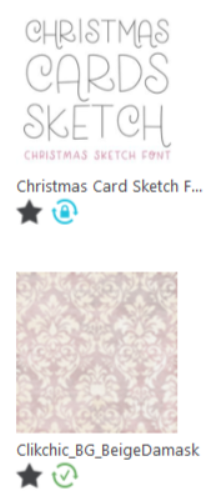
IMPORTANT: The Design Store Re-Import Trap
In general, Design Store purchases do not count toward your quota, as long as they stay store-linked.
However, if you download a Silhouette Design Store design to your computer and then manually upload or re-import it into the Library, Silhouette Studio treats it as a user-added file, not a store purchase.
Once added back into the Library this way:
- The file WILL count toward your cloud storage quota
- Even though you originally purchased it from the Design Store
This distinction matters for users who prefer managing files locally or rebuilding their Library structure manually.
Silhouette Studio Storage Limits By Subscription Plan (2026)
Silhouette cloud storage limits vary depending on your account and subscriptions. The following information reflects current limits at the time of writing and may be subject to change.
Free Silhouette Account
1 GB of cloud storage for user-created and imported designs
Purchased Design Store files do not count toward this limit
Sufficient for: Light users with occasional imports
Watch out if: You regularly import SVGs or save multiple design versions
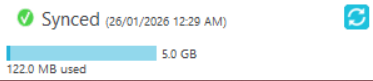
Design Store Subscriptions
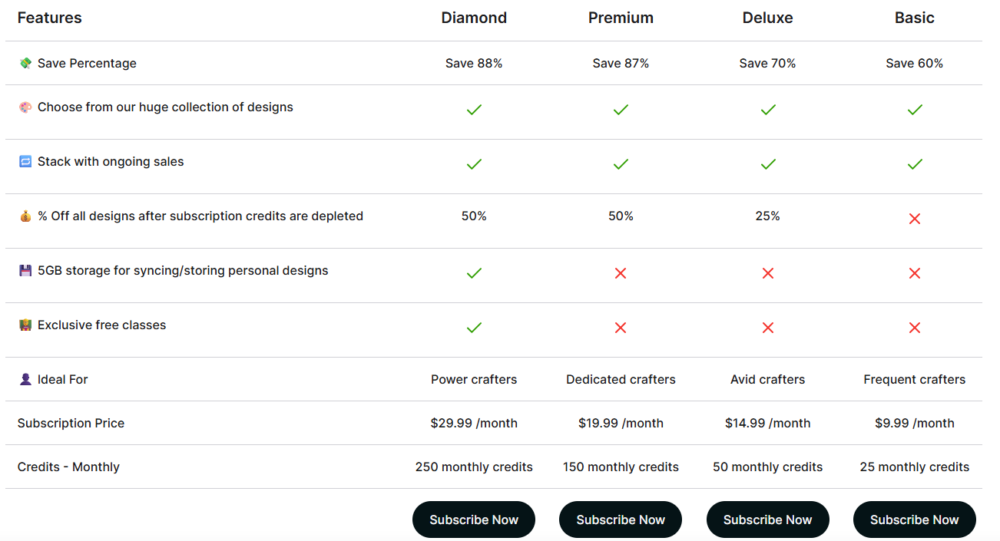
Silhouette Design Store subscriptions primarily provide monthly design credits and discounts.
At the time of writing:
- Only the Diamond Design Store subscription includes increased cloud storage
- Diamond subscribers receive 5 GB of cloud storage for user-created designs
- Lower-tier subscriptions do not include additional storage beyond the free 1 GB
Ready to upgrade? Compare current Design Store subscription plans and see which storage option fits your workflow. All subscription plans include a 60 day credit rollover. After 60 days, unused credits gained through subscriptions will expire. 1 credit = $1 USD
Pro Tip: Storage allowances and benefits may change, so review your account details periodically.
Club Silhouette Membership
Members of Club Silhouette also receive 5 GB of cloud storage for user-created designs at the time of writing and subscribers receive machine supplies. Club Silhouette is available in the USA but may not be available in other countries.
Important: Club Silhouette is a separate membership from Silhouette Design Store subscriptions which are only for Silhouette Design Store Designs. As with all Silhouette plans, storage limits and benefits are subject to change, so independent backups are still essential.
Managing Your Cloud Storage Quota
When your Library reaches its storage quota, you may encounter errors when trying to:
- Sync new designs
- Upload additional files to the Library
Your existing designs are not immediately deleted, but syncing may stop until space is freed or storage is increased. Purchased Design Store files remain available regardless of storage limits.
How To Backup Silhouette Studio Designs: Building a Resilient Workflow
Silhouette’s cloud Library is a convenient syncing tool that works beautifully when you need multi-device access. But like any cloud service, it’s designed for synchronization, not long-term archival storage.
Storage policies can change, quotas may be adjusted, and platforms evolve—that’s true across the entire software industry. The solution isn’t to avoid cloud storage; it’s to build a workflow where you’re never dependent on just one storage method. This gives you flexibility, control, and confidence no matter what changes come.
Best Practice: Always Maintain Your Own Backups
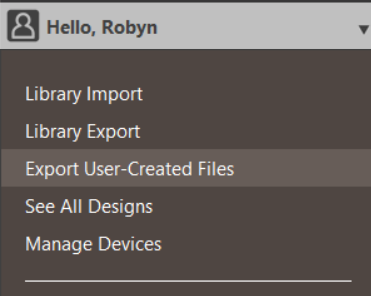
Export user-created designs regularly and save copies to:
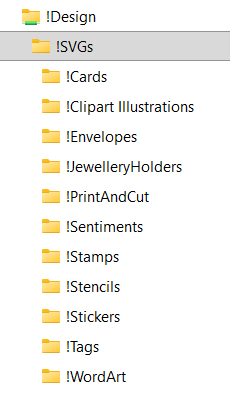
- Your computer (organized folder structure)
- An external hard drive
- A personal cloud service (Google Drive, Dropbox, OneDrive)
Pro Tip: Set a recurring calendar reminder (monthly or quarterly) to export and backup your designs. It takes 10 minutes and could save hours of lost work.
Building a Confident, Flexible Workflow
The most successful Silhouette users don’t worry about storage changes or platform updates—because they’ve built workflows that give them complete control:
Your Computer = Your Foundation
- Save all projects locally as your primary copy
- You control organization, access, and backups
- Work offline anytime, no internet required
Cloud Library = Your Convenience Layer
- Sync only what you need across devices
- Great for designs you’re actively using
- Keeps your most-used files accessible anywhere
Personal Backups = Your Safety Net
- Regular exports to external drives or personal cloud services
- Protects against computer failures, accidental deletions, or any unexpected changes
- Takes 10 minutes monthly, saves potential headaches
Result: You’re never caught off guard by storage adjustments, platform updates, or quota changes. Your work is secure, accessible, and completely under your control.
Pro Tip: Many experienced Silhouette users have shifted to a local-first workflow and report better results: faster design work offline, no storage limit concerns, and the ability to work even with unreliable internet. Cloud syncing becomes an optional convenience rather than a necessity, which is exactly how it should work.
Workflow Tips For Managing Designs Without Storage Stress
Follow these practical strategies to keep your design workflow smooth:
1. Design and save locally first Create your projects and save them to your computer. Only sync to the Library when you need cross-device access.
2. Sync only what you need across multiple devices Not every design needs to be in the cloud. Be selective about what you upload to the Library.
3. Periodically review Library storage usage Check your usage indicator monthly and clean out designs you no longer need synced.
4. Remove unnecessary synced files Delete or move designs from the Library back to local storage when you’re done with a project.
Quick Checklist: Protecting Your Silhouette Studio Designs
Before saving or syncing designs to your Library, ask yourself:
? Is this a Design Store purchase or a user-created/imported file?
? Do I need this design available on multiple devices?
? Have I saved a local copy outside Silhouette Studio?
? Am I close to my cloud storage quota?
? Have I recently exported and backed up my user-created designs?
If you can’t confidently check all five, it’s time to review your storage and backup workflow.
Choosing The Right Subscription For Your Workflow
If you regularly create, import, or modify designs, additional cloud storage can be helpful, but it should support your workflow, not replace proper backups.
For users who rely heavily on Silhouette Studio, reviewing current Design Store subscription options may help determine whether added storage fits your needs:
View current Silhouette Design Store options
Key Takeaways: Silhouette Studio Storage & Backup
- Save designs locally first—they don’t count toward your quota
- Free accounts: 1GB | Diamond/Club: 5GB cloud storage
- Design Store purchases are quota-free (unless re-imported manually)
- Always maintain your own backups outside Silhouette’s cloud
- Export user-created designs regularly to external storage
- Be selective about cloud syncing—not everything needs to be in the Library
Frequently Asked Questions
Do Silhouette Design Store purchases count toward my storage limit?
No, as long as they remain store-linked purchases in your Library. However, if you download them and manually re-import them, they will count as user files.
How much cloud storage do I get with a free Silhouette account?
Free accounts receive 1GB of cloud storage for user-created and imported designs.
What happens when I reach my Silhouette cloud storage limit?
You won’t be able to sync new designs until you free up space or upgrade your storage. Existing designs remain accessible.
How do I backup my Silhouette Studio designs?
Go to File > Library > Export User-Created Designs and save to your computer, external drive, or personal cloud service.
Does Club Silhouette include extra cloud storage?
Yes, Club Silhouette members receive 5GB of cloud storage at the time of writing (January 2026).
Can I use both local storage and cloud storage?
Absolutely! Most experienced users save locally as their primary method and sync only select designs to the cloud for multi-device access.
Final Thoughts
Your designs represent time, creativity, and often income. Understanding how Silhouette Studio’s storage works—and building a workflow that puts you in control—means you can create with confidence.
By saving locally first, backing up regularly, and using cloud storage strategically, you’re no longer dependent on any single storage method. Quota changes don’t stress you. Platform updates don’t disrupt you. You have the flexibility to adapt to any evolution in the software while keeping your creative work safe and accessible.
That’s the kind of workflow that lets you focus on what matters: making amazing designs.
Found this helpful? Share it with your Silhouette crafting community or save it for future reference when setting up your backup workflow.
© Clikchic Designs 2026
Subscribe to the Clikchic Designs Newsletter and get a FREEBIE! There are ongoing freebies as well. Don't worry, we won't inundate you with emails.