I Love You Mum!
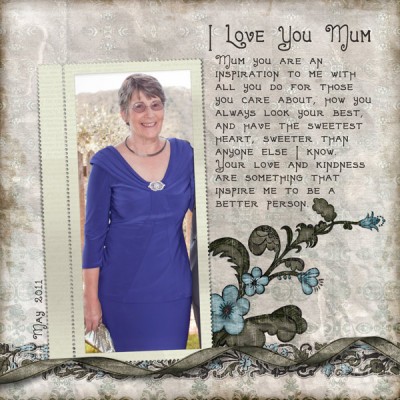
My beautiful Mum! Created with my Cinnamon Sunday Digital Scrapbook Kit and Stamp Cluster Frames

My beautiful Mum! Created with my Cinnamon Sunday Digital Scrapbook Kit and Stamp Cluster Frames
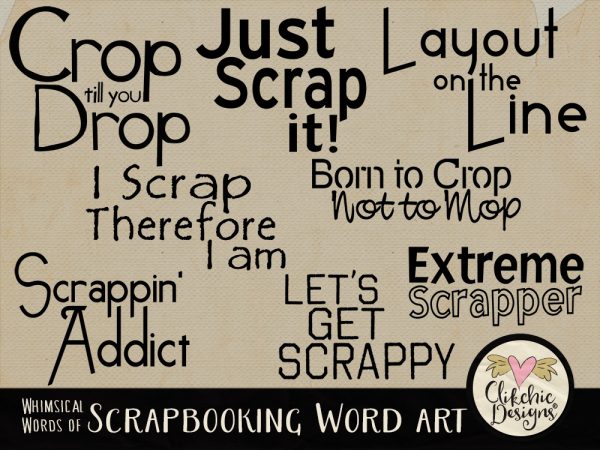
These gorgeous whimsical titles of scrapbooking feature titles that all scrapbookers can relate to. Add a fun and quirky touch of flair to your layouts of your scrapbooking adventures! Whimsical Words of Scrapbooking is available in my Etsy store.
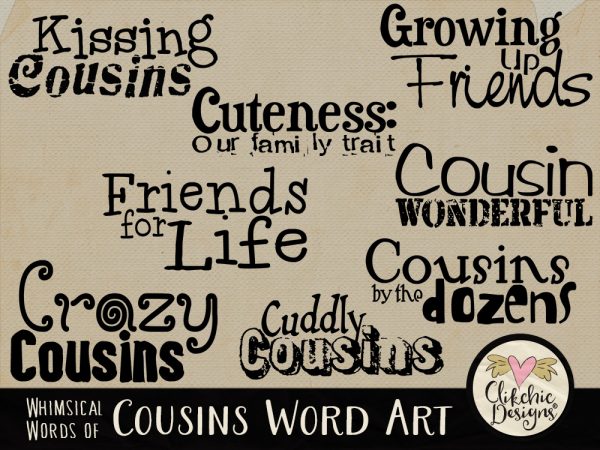
These gorgeous whimsical titles of Cousins are a fabulous for all your family and cousins layouts. Add a fun and quirky touch of flair to all your layouts featuring cousins! Whimsical Words of Cousins is now available in my Etsy Store.
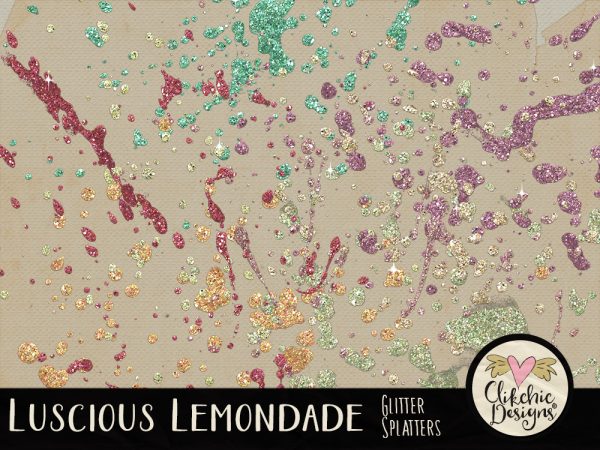
Now my Etsy Store, Luscious Lemonade Glitter Splatters. These fabulously luscious glitter splatter scatters are a perfect compliment to many a layout to add that finishing touch of bling. Coordinates with the Luscious Lemonade Digital Scrapbook Kit.
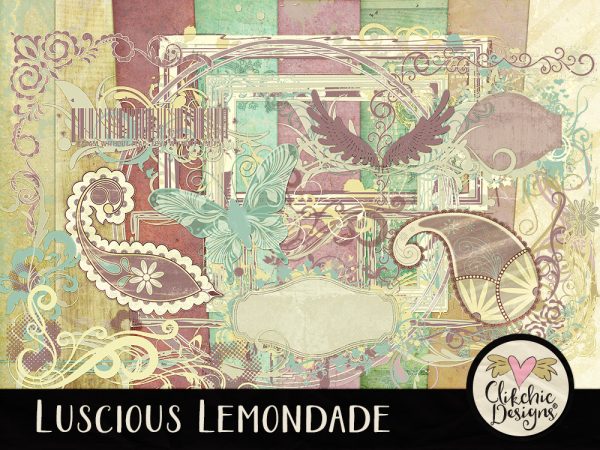
The Luscious Lemonade Digital Scrapbook Kit is now available in my Etsy Store. The Luscious Lemonade Digital Scrapbook Kit features fresh and bubbly colors of lemonade, lime and spring flowers. Refreshing swirly colors of spring with beautiful swirls and flourishes perfect for creating beautiful blended or graphic style layouts.
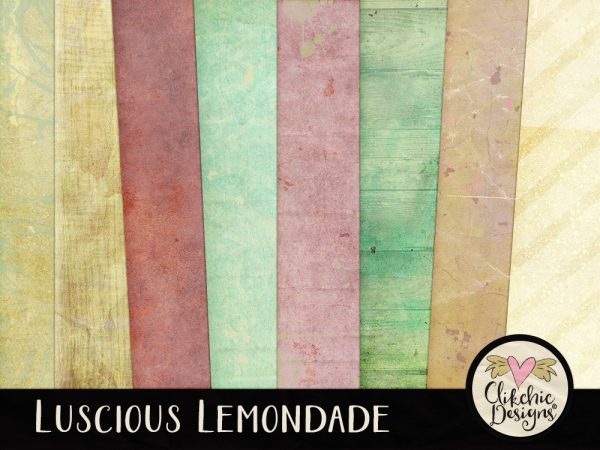
Check out these layouts created with Luscious Lemonade.
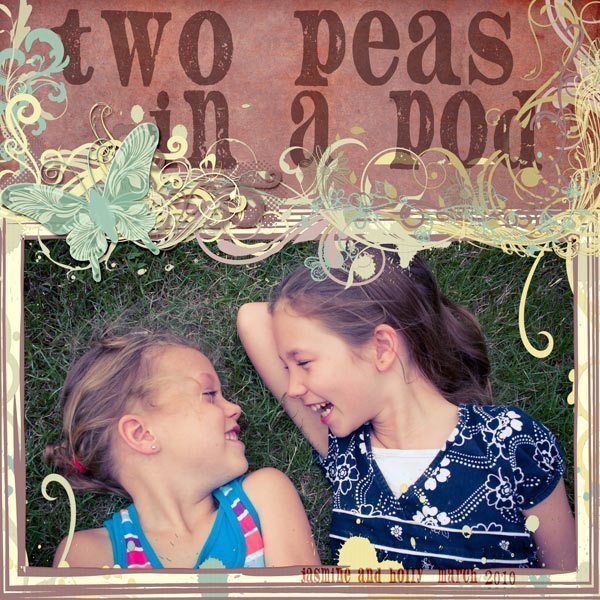
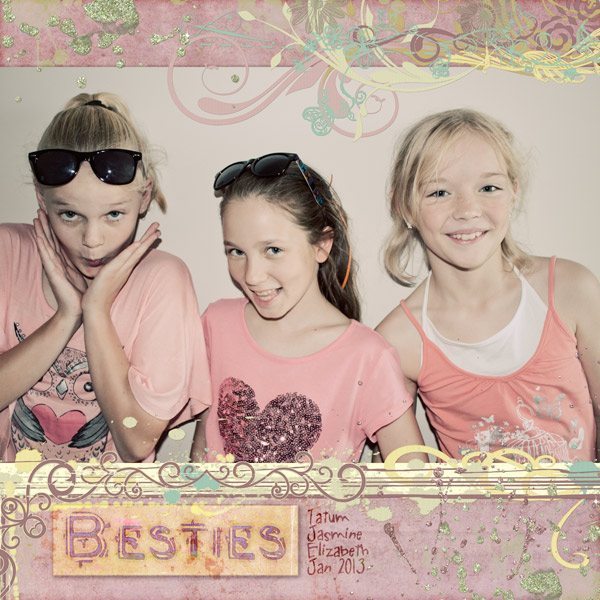
Coordinating with the Luscious Lemonade Digital Scrapbook Kit is also the Luscious Lemonade Glitter Splatters which I used in the layout above.
Time for another Feature Friday! Every so often I will feature a Digital Scrapbook Kit on my blog and feature some layouts created with the Digital Scrapbook Kit as well as some products that co-ordinate well with the Featured Digital Scrapbook Kit. I am hoping featuring some kits with some layouts will help inspire you to use the kit some more if you have it already, or maybe even buy it if you don’t already have it. ::innocent smile::
Today I am going to feature one of my all time favourites as a collection I keep coming back to over and over again, Floral Fancy Digital Scrapbook Kit which is available in my Etsy store and Clikchic Designs store
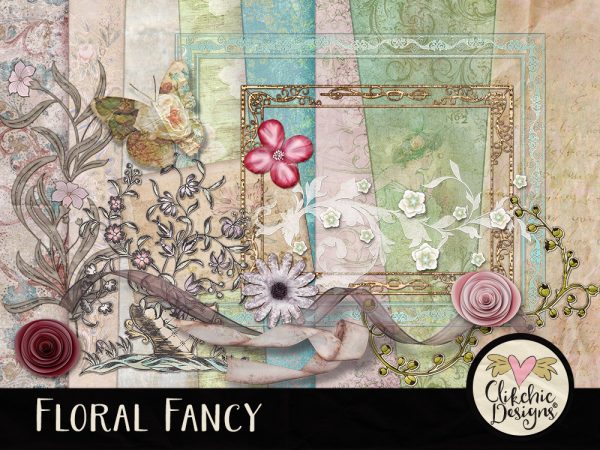
Here are a few of my own layouts with the Floral Fancy Digital Scrapbook Kit.
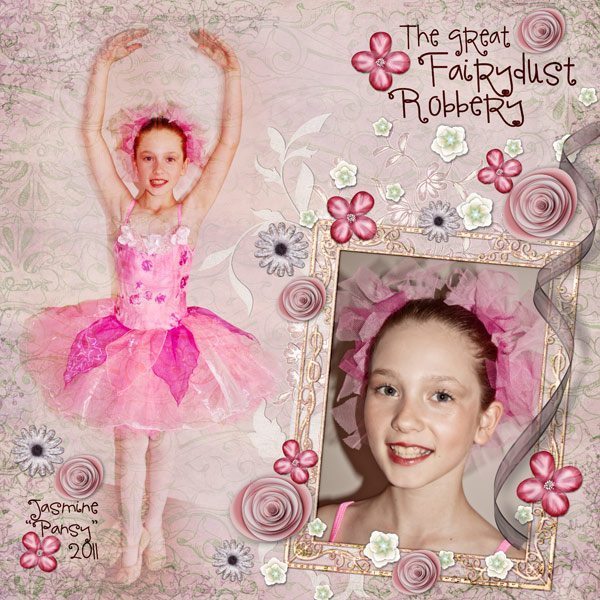
This is my most recent layout with Floral Fancy. My Daughter in her costume for her end of year dance concert. She played a ‘pansy’ for her part in The Great Fairy Robbery. It is her third concert but the first one where she was finally able to wear a tutu!
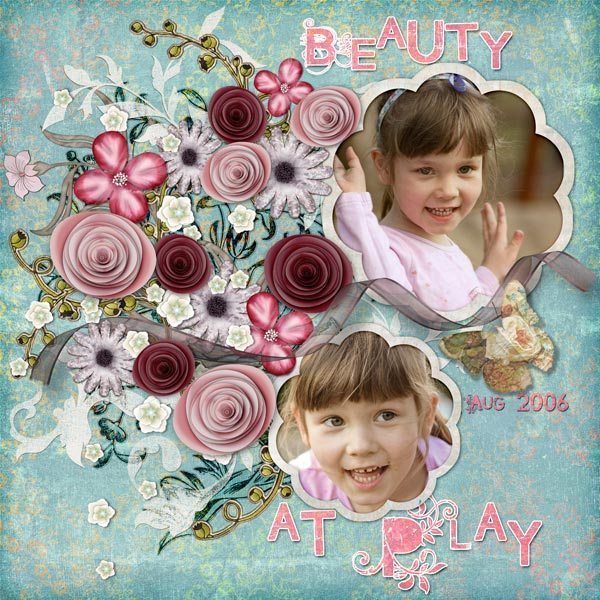
Our darling daughter playing at a park. I did this layout for a speed scrap inspiration.
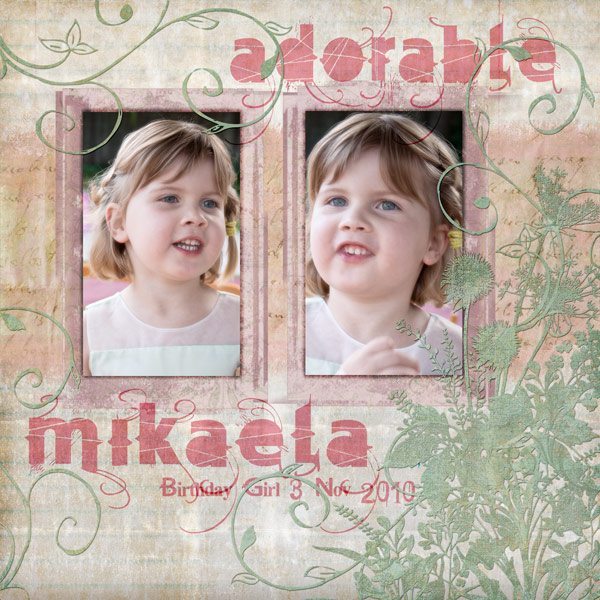
Our precious niece on her 4th birthday.
Created with my Grunge Wildflower Layered Quick Click Template and my Floral Fancy Digital Scrapbook Kit.
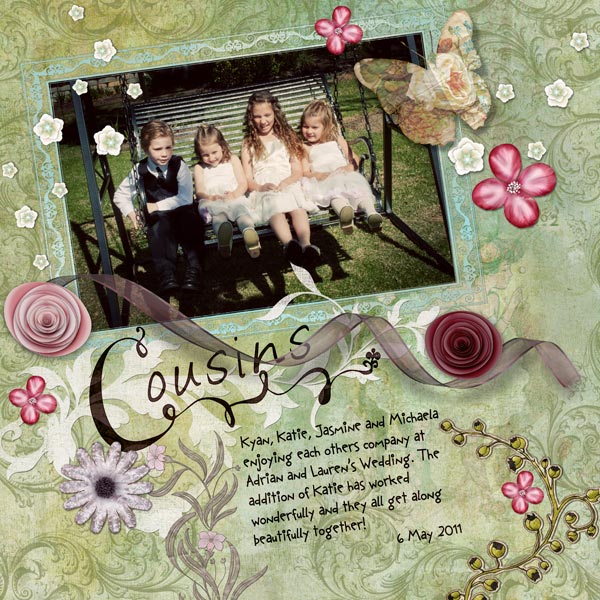
Cousins enjoying each others company at my Brothers Wedding. The addition of our new niece has worked wonderfully and they all get along beautifully together! 6 May 2011
Our gorgeous girl!! Created with my Floral Fancy Digital Scrapbook Kit and Floral Art Clipping Masks
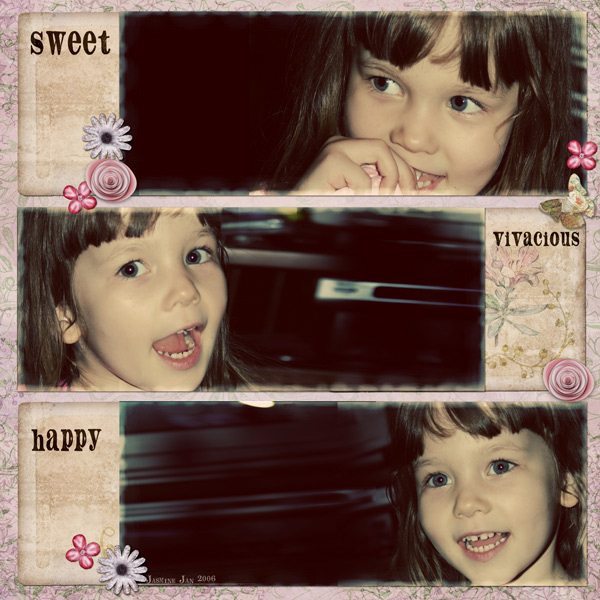
Our darling girl performing for the camera when she was 3 years old. She still loves the camera and I think it shows!
A two page layout of Jasmine doing ballet.
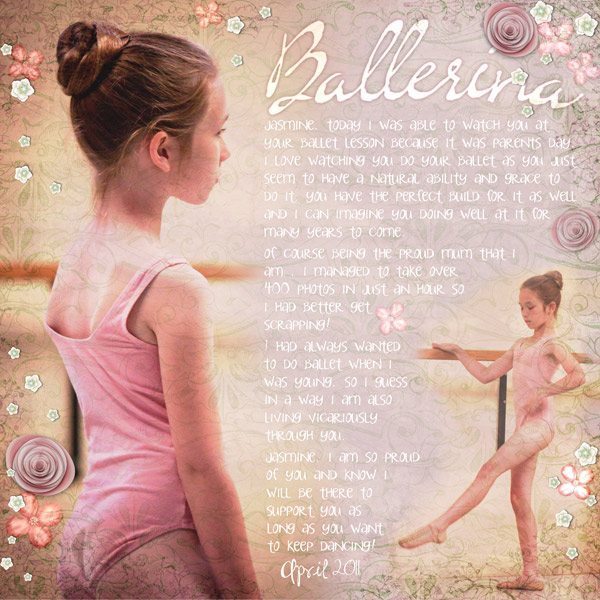
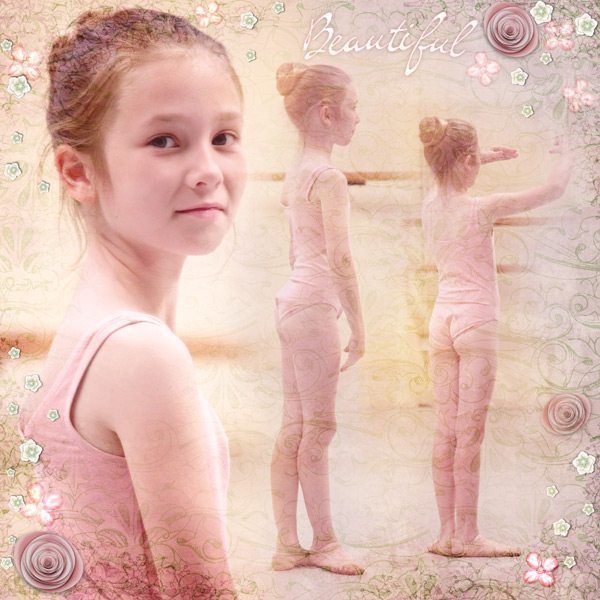
Journaling: Jasmine, Today I was able to watch you at your ballet lesson because it was parents day. I love watching you do your ballet as you just seem to have a natural ability and grace to do it. YOu have the perfect build for it as well and I can imagine you doing well at it for many years to come. Of course being the proud Mum that I am , I managed to take over 400 photos In just an hour so I had better get scrapping!
1 had always wanted to do ballet when I was young, so I guess in a way I am also living vicariously through you. Jasmine, I am so proud of you and know I will be there to support you as long as you want to keep dancing! April 2011
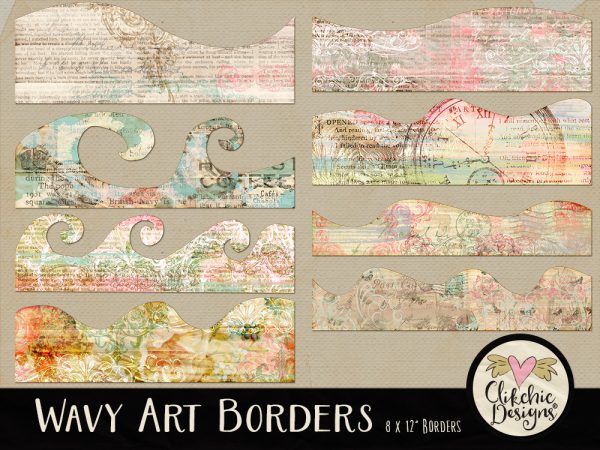
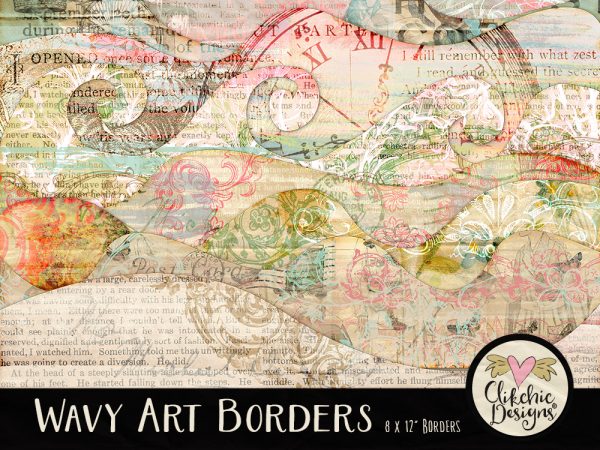
These large versatile altered art borders (12″ wide) are a fabulous and easy way to give your layout and photo borders a stylish altered shabby look. You can recolor them to suit your layout or leave them as is. The wavy art page borders are a quick and easy way to add some art to your creations and are ideal for a wide variety of layouts. Wavy Art Borders are now in my Etsy Store.
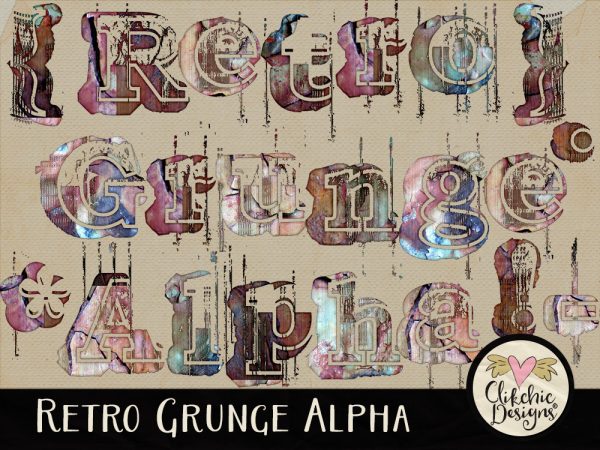
This funky grungy retro alpha is perfect for a touch of arty style for your blended, urban, teen, altered art or art journal and kids digital scrapbook layouts & other creative projects. Retro Grunge Alpha is now available in my Etsy Store.
One of the most fundamental aspects of working with digital craft, graphic design, and digital scrapbooking files is being able to unzip the files you download. Windows comes with it’s own ability to unzip files and there is no need to purchase any additional software to do so. Read on to find out how to zip and unzip zip files in Windows. Scroll to the end for instructions on unzipping files a Mac Computer.
Creating and Extracting Zip Files
In digital craft, graphic design and digital scrapbooking there are many occasions where you might have to deal with creating and extracting (opening) zip files. Most graphics you download, whether you buy them or whether they are freebies come in zipped files. Zip files are normally a way of compressing files to keep down the size of them as well as keeping them together in a single file rather than several separate ones.
With graphic or image files, zips often don’t reduce the file size much, if at all, however they are a very good way of keeping a collection of files together to enable easier downloading and uploading on the web. Windows provides it’s own zipping facilities, but if you do not have Windows there are several zipping programs out there which you may be able to use instead. For the purpose of this tutorial, we will explain how to zip and extract files with Windows Explorer.
Alternatively, you can double-click the ZIP file to open it, then drag and drop the files to your desired location. This method works for Windows 11, 10, 8.1, and 7. If you need further assistance, feel free to ask!
These steps work for Windows 11, 10, 8.1, and 7. If you need further assistance, feel free to ask!
Alternatively, you can right-click the ZIP file, select “Open With,” and choose “Archive Utility” to unzip the file. This method is useful if you have multiple unzipping tools installed and want to specify which one to use.
This article is © Clikchic Designs 2007 All Rights Reserved Not to be reproduced without express written permission
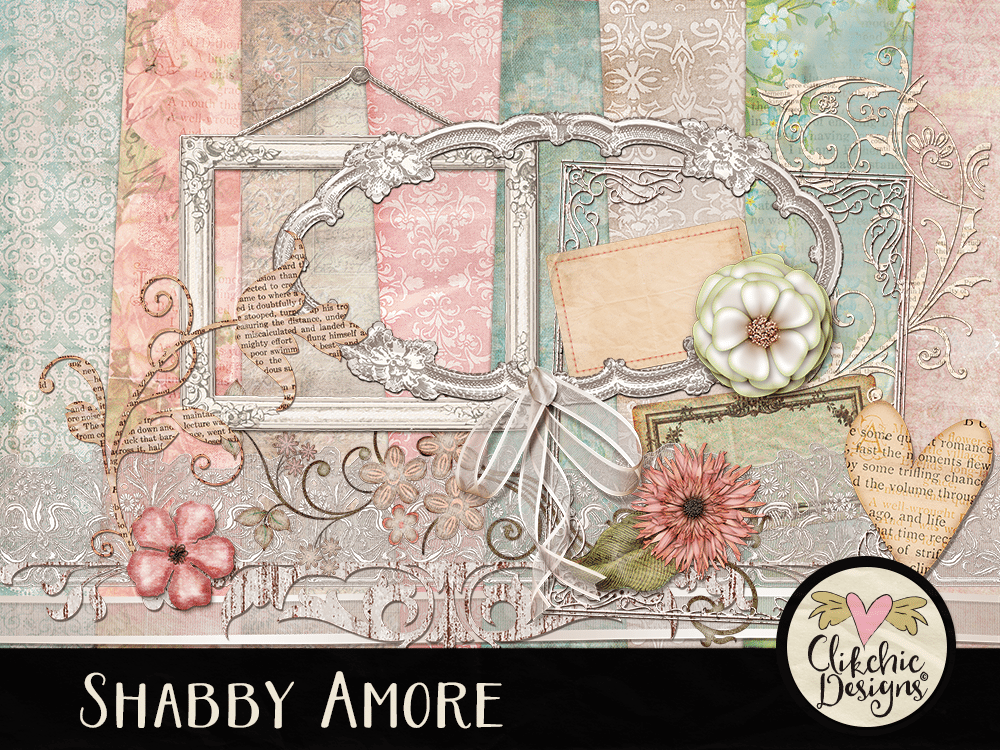
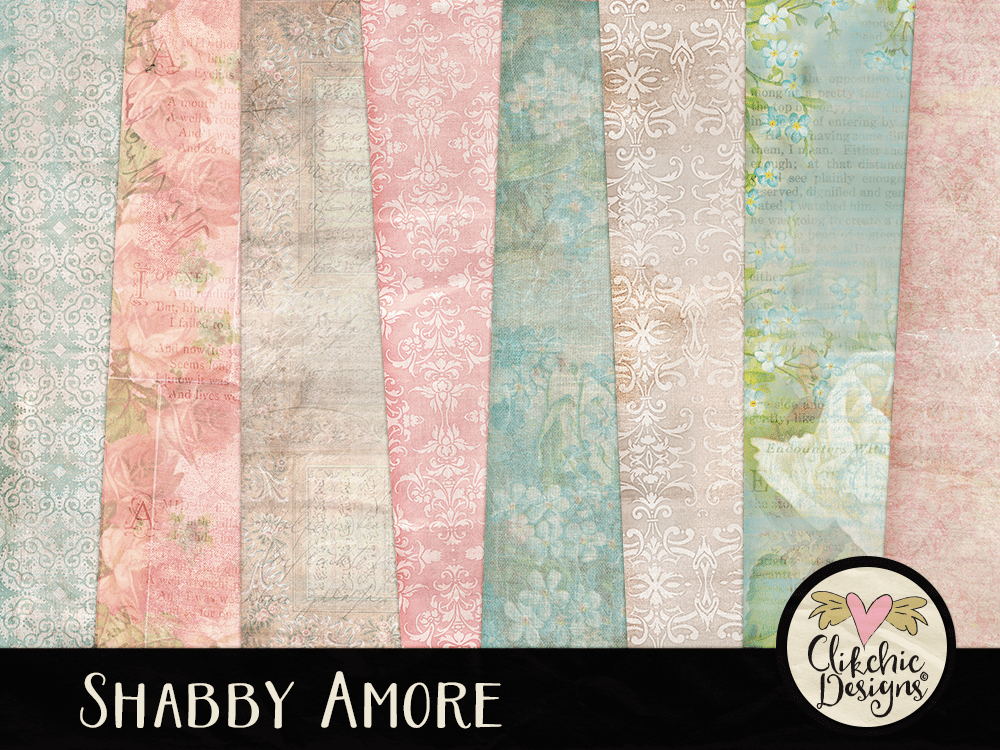
The Shabby Amore Digital Scrapbook Kit is now available in my Etsy Store. Shabby Amore features fabulous soft and feminine tones of peach, mint, bone and teal with beautiful soft flowers and shabby accents. These papers and embellishments are perfect for all your romantic, heritage and feminine layouts.